
Introduction
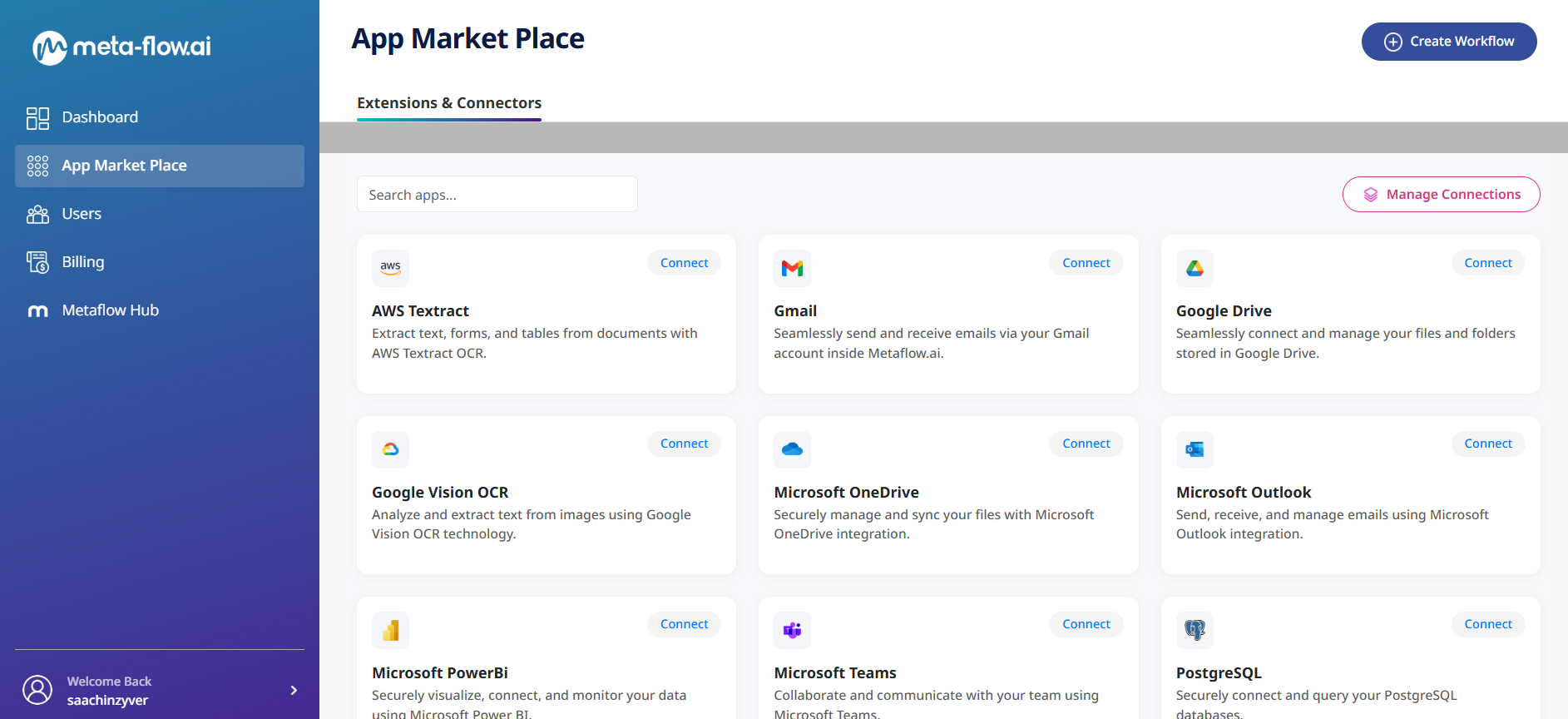
What are Connectors?
Connectors let meta-flow.ai talk to external systems — email providers, cloud drives, OCR/vision services, databases, messaging platforms, HR apps, and many more — without writing code.
Use them to fetch files, extract text, send messages, run queries, and automate business tasks inside your workflows.
How to use connectors
• 1. Go to App Marketplace → Extensions and Connectors.
• 2. For predefined apps, click Predefined Apps.
• 3. Pick the connector you want and click Connect.
• 4. Enter a Connection Name and provide the required credentials or sign in using OAuth.
• 5. Click Save. The connection appears under My Connections.
• 6. Use the connection in activities (for example: Send Email, Fetch File, Run Query, Send SMS).
Connection rules & best practices
Connection Name
Must be unique per connector type.
Example: Gmail - team1 and Gmail - personal are allowed, but you cannot create two Gmail connections both named Gmail - team1.
Avoid duplicate accounts/credentials
Do not add the same account or credentials twice.
The system prevents duplicate connections for the same account to avoid duplicate triggers, billing problems, and permission confusion.
Naming suggestions
Add environment and owner in the name so people can quickly identify the connection.
Example: aws-textract-prod-akshay, pg-reporting-stage.
Least privilege
Use the minimum permissions required in the external provider (for example, narrow IAM policies for AWS).
This reduces risk and makes audits easier.
Database & server availability
• DB hosts and service endpoints must be reachable from meta-flow.ai environment.
• If the external server is down or network access is blocked, meta-flow.ai cannot connect.
• Ensure the database server (Postgres, etc.) is running.
• Verify host/IP and port are correct.
• Confirm firewall/security groups allow inbound connections from meta-flow.ai IP ranges — or use an SSH tunnel / VPN.
• For cloud DBs, ensure IP whitelisting includes meta-flow.ai IP(s) or configure VPC peering.
• If using SSL, ensure the correct certificates are available or enable the proper SSL option in the connection form.
• Always use the Test Connection button after adding or updating credentials.
Rotation behaviour, impact & support
• When you rotate/change credentials in the external provider : You must delete the existing connection in meta-flow.ai and add a new one with the updated credentials.
• meta-flow.ai stores encrypted credentials/tokens for the active connection.
• If those credentials are changed externally, they become invalid and cause authentication failures.
• Re-adding the connection fixes the issues.
• This applies to all connector types including OAuth providers (Google, Microsoft, Zoho), Cloud APIs (AWS, GCP), Messaging providers (Twilio), and Databases (Postgres, MySQL, SQL Server).
• When OAuth tokens expire or are revoked, meta-flow.ai can no longer authorize requests, causing activities to fail until reauthenticated.
Important
If you rotate/change credentials (API keys, secrets, DB passwords) in the external provider, you must delete the existing connection in meta-flow.ai and add a new one with updated credentials.
meta-flow.ai stores encrypted credentials/tokens for active connections. If credentials change externally, stored values become invalid and cause authentication failure.
OAuth tokens commonly expire every ~90 days depending on provider security policy. Reauthentication may be required even with refresh tokens.
Quick recovery steps
• If keys/tokens were rotated, first update/rotate them in the external provider (AWS, Twilio, DB etc.).
• Delete the existing connection in meta-flow.ai via App Marketplace → Connector → View Account → Actions → Delete.
• Create a new connection with updated credentials (you may reuse or rename, but avoid duplicates per connector type).
• If OAuth token expired, click Reconnect and sign in again to refresh access.
• If reconnect option is not available, delete the connection and add it again to obtain fresh tokens.
Viewing connection details
You can View a connection to see metadata (Connection Name, last connected on, region, status).
Credentials and secrets are stored encrypted. Only masked credentials or allowed attributes are shown in UI to users with proper permissions.
Never expose raw secrets publicly.
Example Connection Name formats
• gmail-prod-ankit
• aws-textract-staging-teamA
• pg-reporting-stage-ssa